
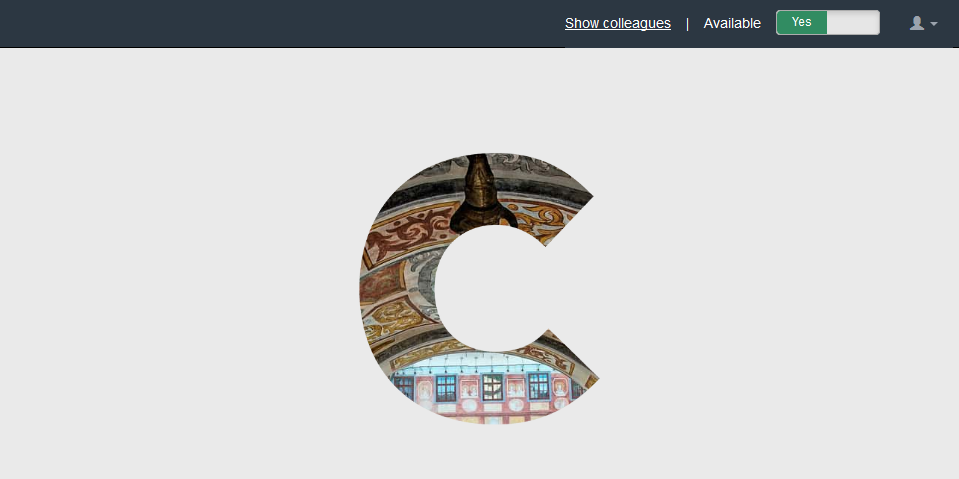
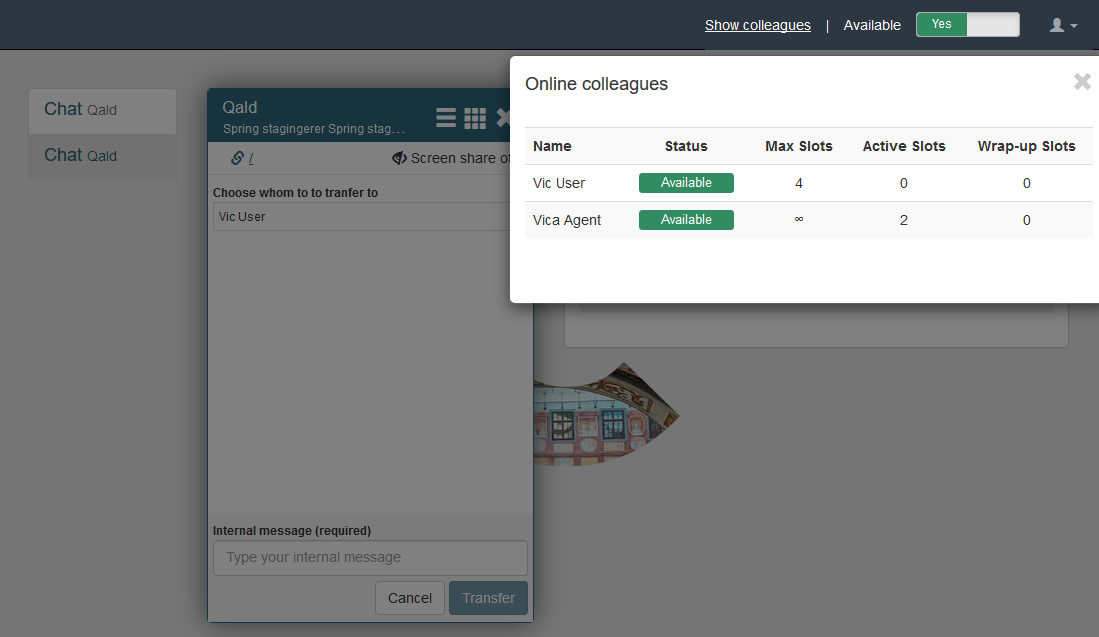
"Show colleagues" is the option which gives for every Agent opportunity to see a pretty much detailed information about all Agents who are logged into the system. It is a clickable link, located on top of the Agent screen near the availability switcher. By clicking "Show colleagues" link it will reveal a modal window.
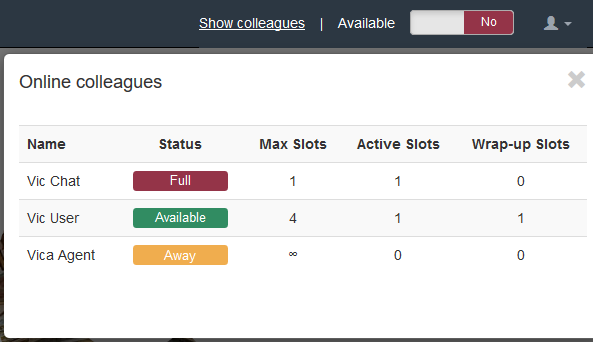
"Show colleagues" option provides user with "Online colleagues" information that helps to orient oneself about other Agent`s availability, max chats possibility, quantity of the actual active and wrap-up slots (slot = chat).
Max slots column displays maximum number of possible chats for the Agent. Infinity sign is shown in case max chats value is not set up for the Agent. Active slots column displays the number of chats, that are active in use right now (also forwarded by other agents). Wrap-up column displays number of chats still opened by agent but closed by visitor. The chat conversation is ended however the operator is doing after-chat tasks. The chat left by visitor will be added to the Wrap-up column, it could not be in Active anymore.
Active slots and Wrap-up slots values are considered as amount for the Max Slots capacity
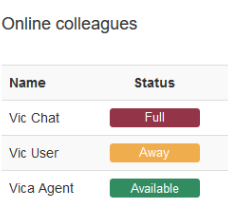
Status column displays agent`s statuses next way:
- Available: agent logged in and has enough capacity;
- Away: agent logged in and not available;
- Full: agent logged in and has not enough capacity to get more chats.
Logged in Agent will always see him/herself in this list. In case there are no other Agents logged into the system, current Agent will not see anybody but his/herself in the modal.
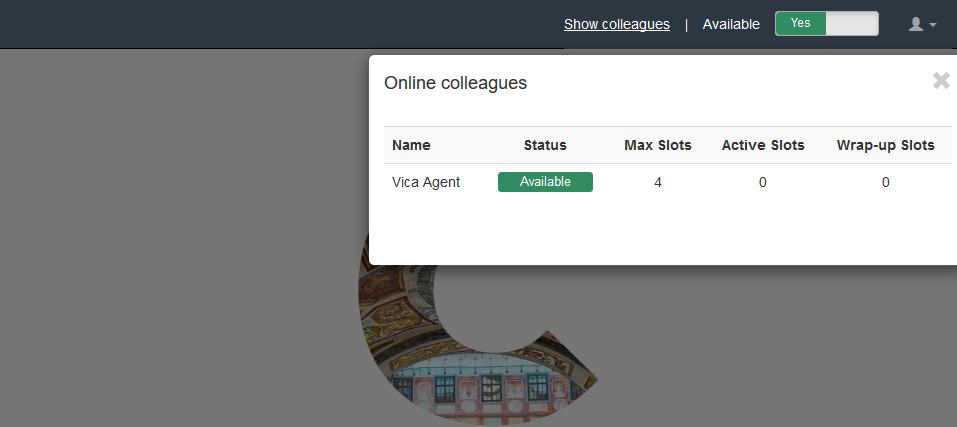
So if Agent forwards a chat, the list of those Agents in the dialogue chat, who are able to receive a transferred chat, will match with information in the modal (of course with the exception of this agent).
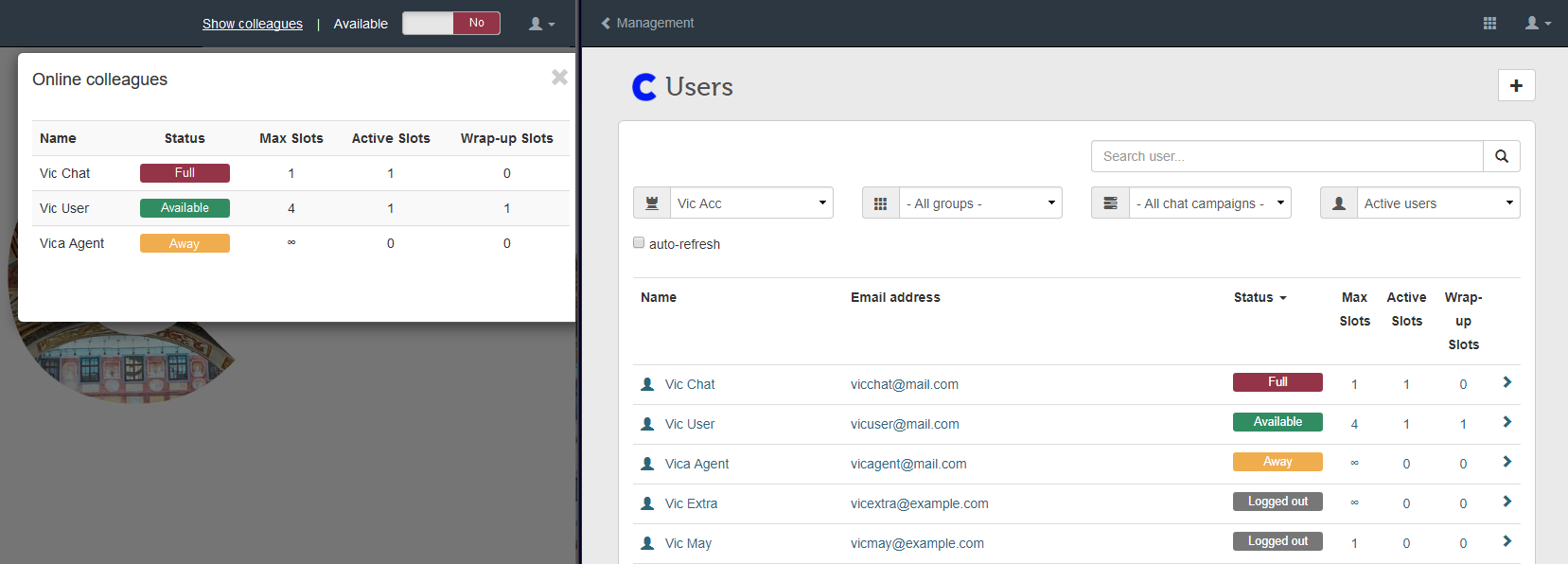
“Show Colleagues” information is exactly the same data for Agents as Managers can see in the Users list screen.
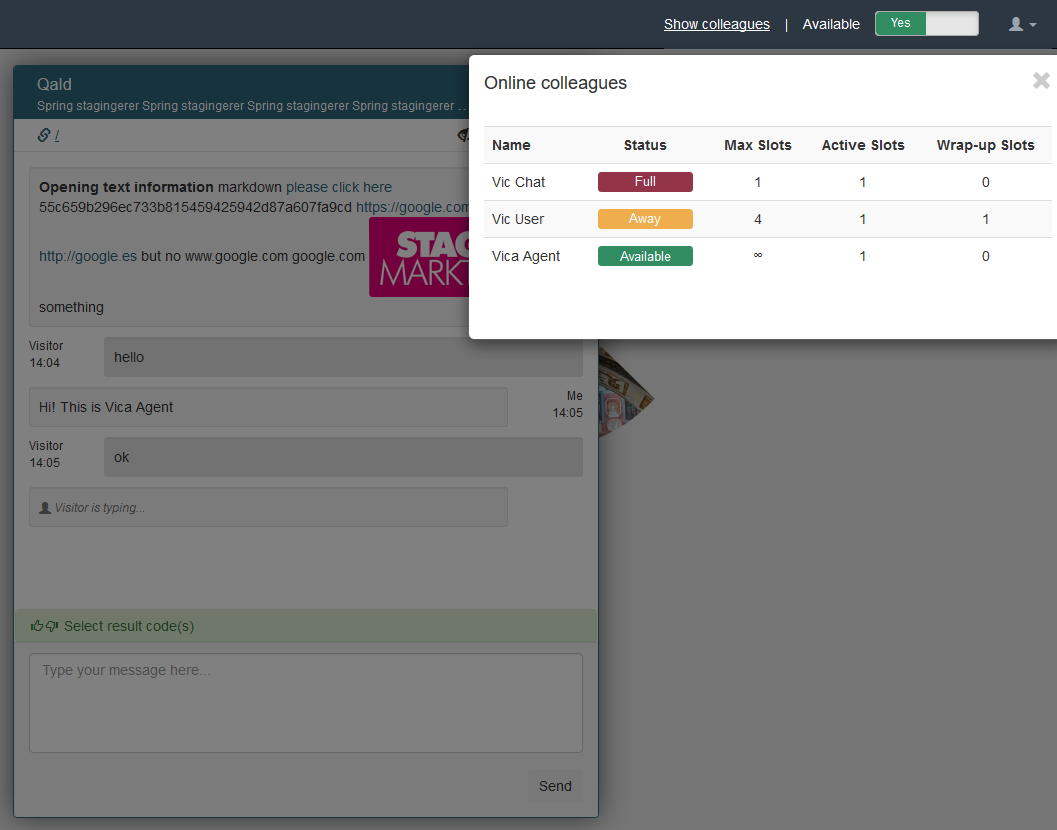
“Show Colleagues” is a modal window, so Agent should close it before going back to use the dialogue chat or other functionality on the screen. Agent is able to do it via "X" cross button in the right corner or with mouse cursor clicking anywhere on the page.
Agents anyway will receive new chats, messages and notifications (like "Visitor is typing" etc) even if “Show Colleagues” window is open. So it does not break the chatting process.
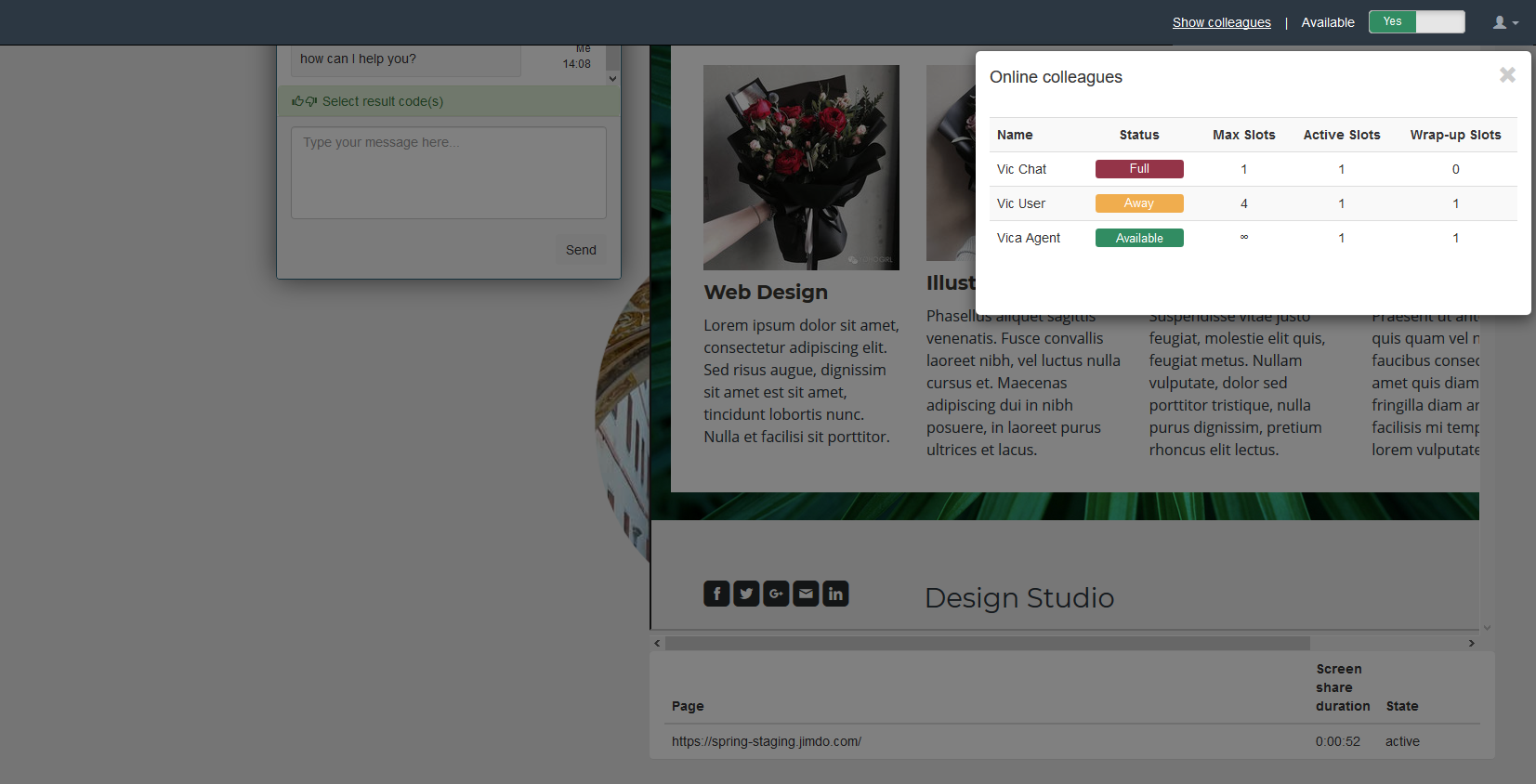
Canned responses, web tabs and cobrowsing information will be still shown in detailed view if “Show Colleagues” window is opened. Overall background processes are not affected.
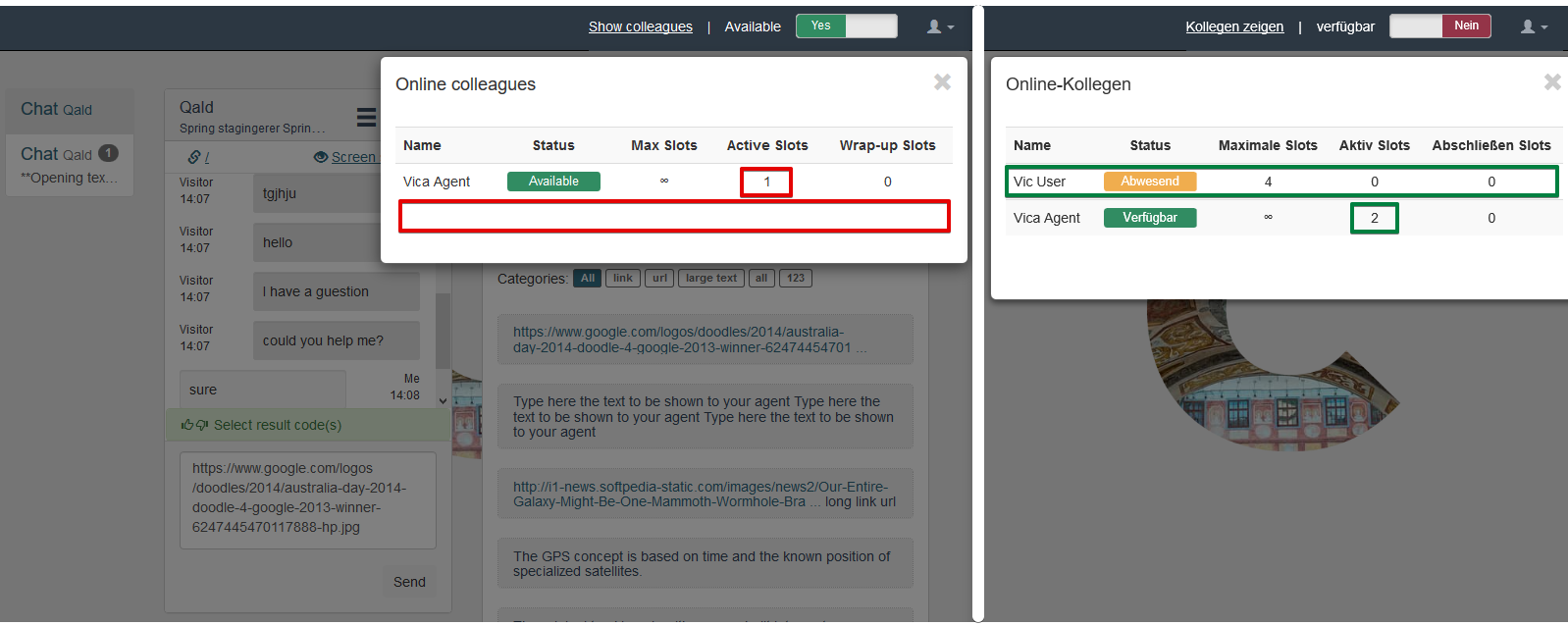
This window displays latest information right after Agent clicks “Show Colleagues” link. But in case, when Agent leaves it opened for a while, it won’t refresh data automatically. Don`t be surprised if after a new incoming chat, the slots quantity stays the same in the opened modal. The whole page refresh is not needed. New actual information will be updated every time Agent closes and reopens this window.
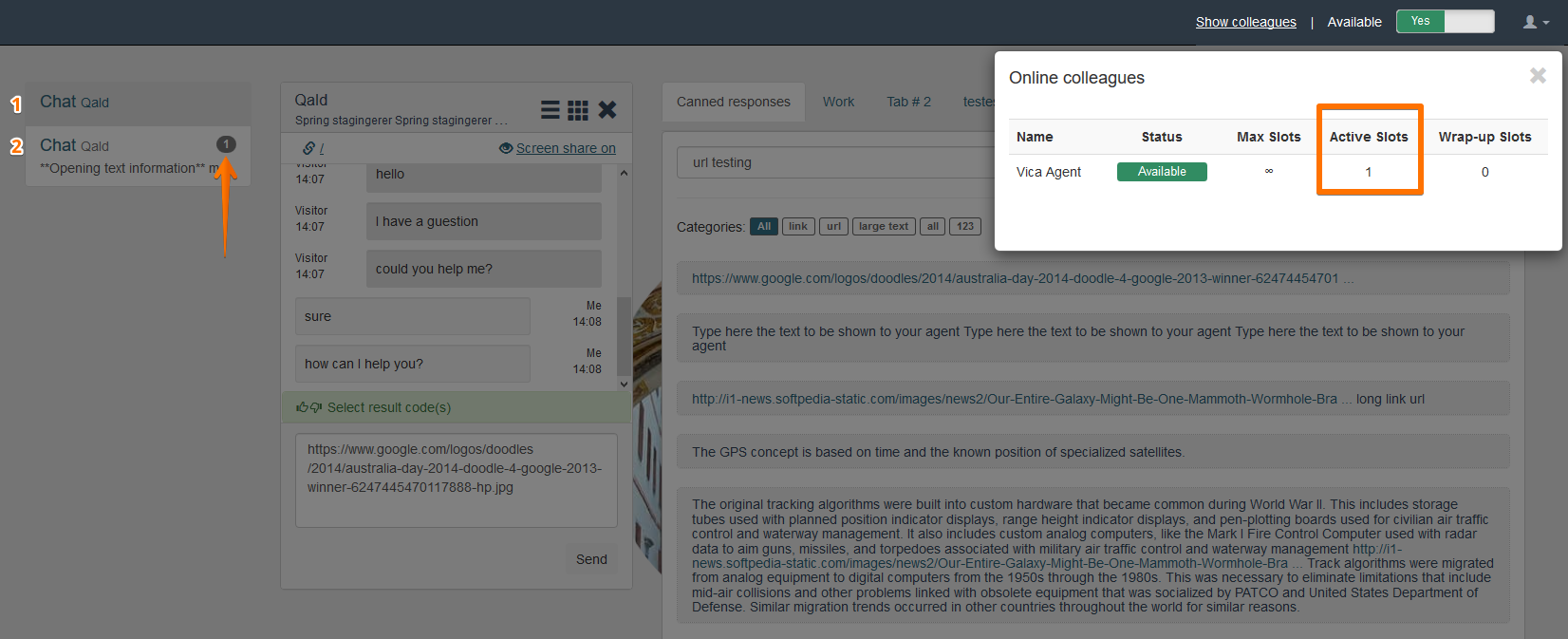
So let`s think about a situation: first Agent leaves the “Show Colleagues” window opened for a while, some changes happened and second Agent opens “Show Colleagues” window even more later. So in this case second Agent will see the latest updated information. It does not mean that information for the first Agent is wrong, it means that it may be out-dated. So the “Show Colleagues” window reopening will help first Agent to see the current renewed data.
Please note that if your colleague has status 'available' it does not always mean you can transfer your chat. The 'Show Colleagues' option shows the colleagues in the Cobrowser live chat system. In order to transfer the actual chat the colleague should be in the campaign / routing based on the received chat.
Comments
0 comments
Please sign in to leave a comment.