
Placeholders are special fields you can use in your chat campaign configuration to display information about the conversation identifier, agent first name or agent screen name.
How it works
In your chat campaign configuration you can add the desired placeholders you want to use. When a new visitor comes to your website and start a new chat conversation with your agents, the CoBrowser system will look for placeholders and if possible replace them with actual values.
Where can I use placeholders ?
Placeholders can be used in 2 different places:
- Interactions settings: You can use placeholders in Opening text message and in Closing text message areas as you can see in the screenshot below.
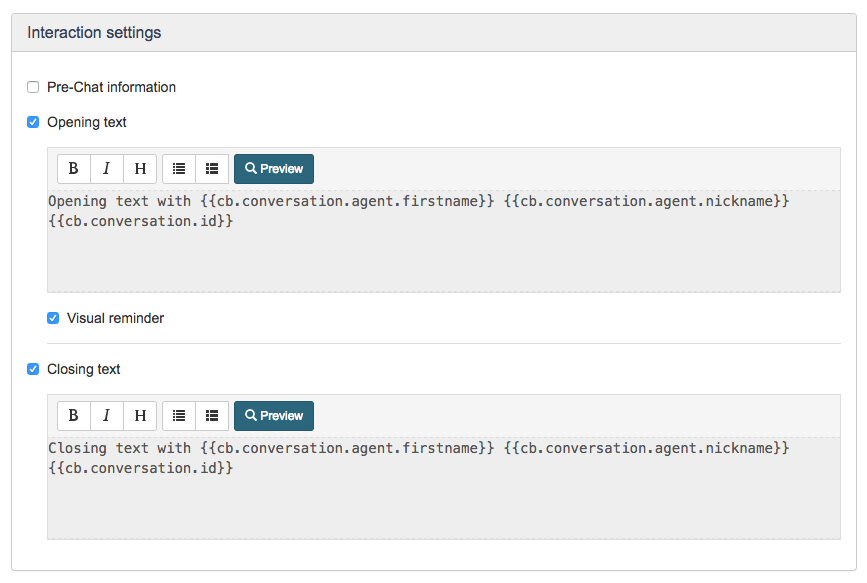
Fig.1: Using placeholders in Interaction setting: Opening and Closing text.
NOTE: Placeholders are not supported in the Pre-Chat Information message area because they're related with a conversation. When you see Pre-Chat information the conversation has not been started yet. - Customer survey: You can add placeholders to Customer Survey question, comment and thanks message areas as you can see in the screenshot below.
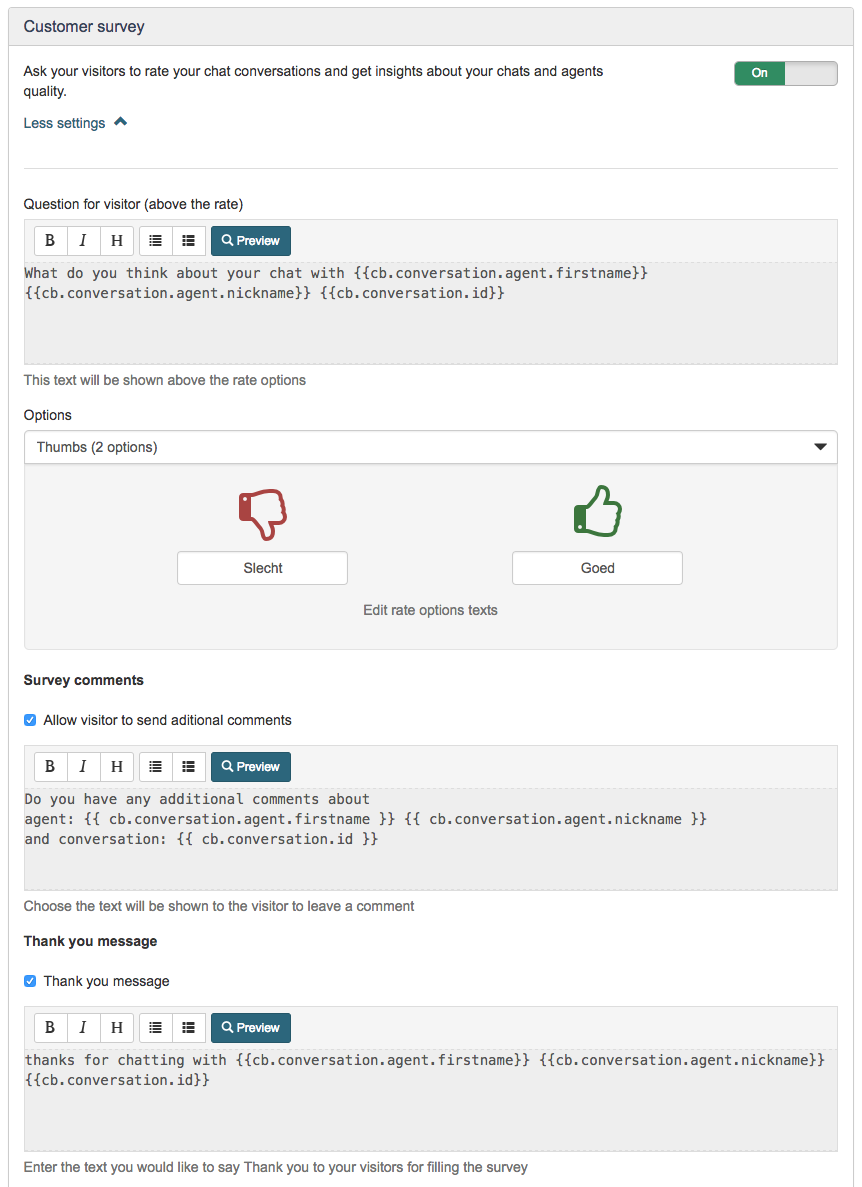
Fig.2: Using placeholders in Customer survey: Question, Comments and Thanks message.
The available placeholders
As you may have already seen, placeholders are special fields enclosed between double curly brackets, for instance, `{{ placeholder }}`
The supported placeholders by our system are:
- {{cb.conversation.id}} : It will be replaced and it'll display the identifier of the current conversation. That identifier is the session id used too for reporting.
In the screenshots below you can see how the placeholder {{cb.conversation.id}} is replaced with the identifier of the conversation in Agent screen and in visitor chat window.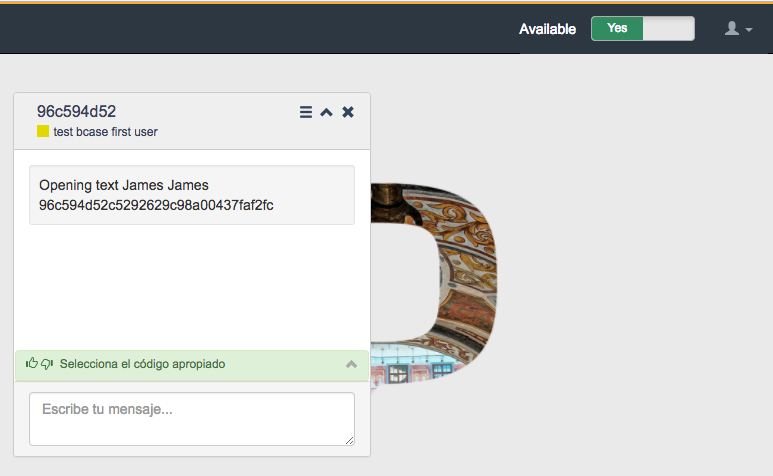
Fig.3: Displaying opening text in agent chat window with {{cb.conversation.id}} replaced with its actual value.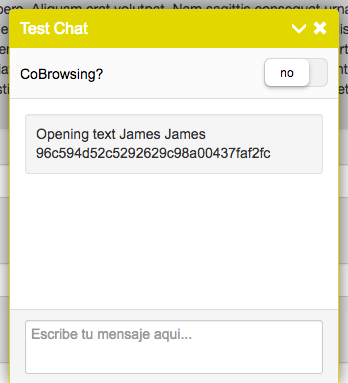
Fig.4: Displaying opening text in visitor chat window with {{cb.conversation.id}} replaced with its actual value. - {{cb.conversation.agent.firstname}} : It'll display the first name of the agent assigned to the current conversation.
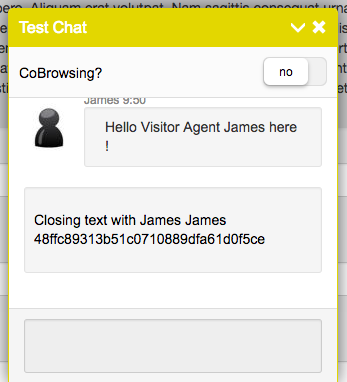
Fig.5: Displaying closing text in visitor chat window with {{cb.conversation.agent.firstname}} and {{cb.conversation.agent.nickname}} properly replaced with the actual values. - {{cb.conversation.agent.nickname}} : It'll be replaced with the screen name of the agent assigned to the current conversation.
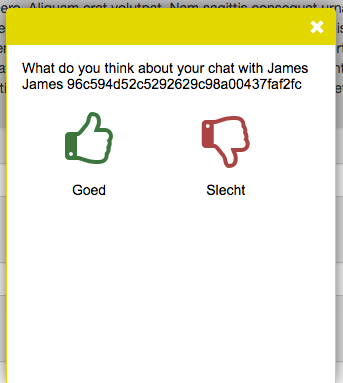
Fig.6: Displaying survey question message in visitor chat window with {{cb.conversation.agent.firstname}}, {{cb.conversation.agent.nickname}} and {{cb.conversation.id}} replaced with their actual values.
Comments
0 comments
Please sign in to leave a comment.