
Introduction
The CoBrowser platform is able to send a great number of events to your Google Universal Analytics (GUA) in order to analyse the performance of your Chat Campaigns. These events allow you to build custom reports giving quick overview of how visitors move through the campaign.
Functionality
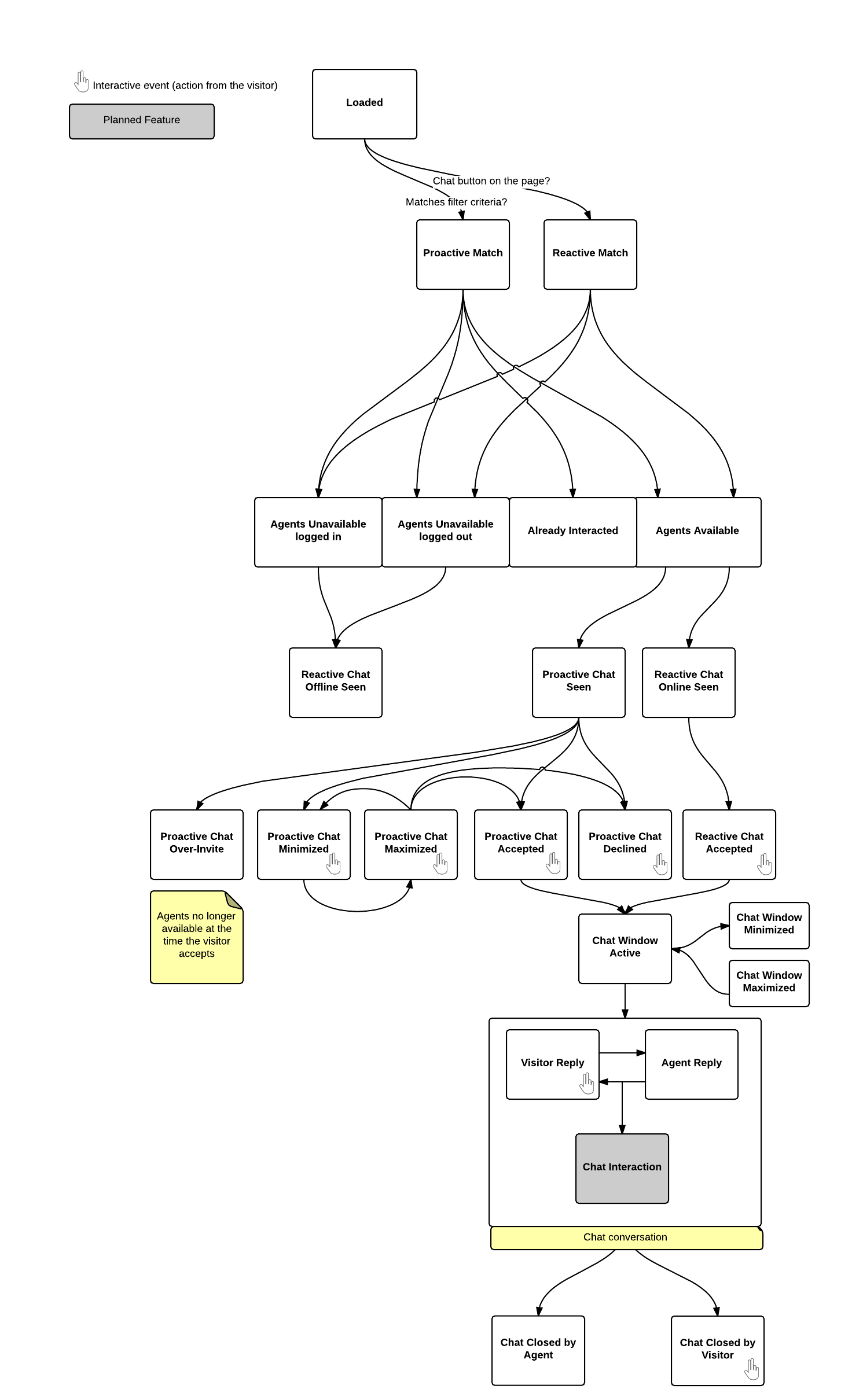
As a visitor is presented with your Chat Campaign and moves through it our SDK will send events to GUA. The events will start firing as soon as our SDK is loaded with your Chat Campaign, starting with the 'loaded' event. In the flowchart below you will find all the events that are sent to GUA. The events with a grey background are planned for future releases.
When visitors do not continue anywhere in your Chat Campaign they are re-entered in the flow. In that case the 'Loaded' event will not be triggered since CoBrowser was already loaded.
* Older versions of google analytics are not supported.
Description of events:
- Loaded: The CoBrowser SDK is loaded and ready to select a Chat Campaign to activate.
- Proactive Match: An Invite was triggered after evaluating the rules that were defines for it. This does not mean it will actually be shown yet. This depends on whether the visitor has "Already Interacted".
- Reactive Match: A chat button was triggered after evaluating the rules that were defined for it. This does not yet mean it was actually shown.
- Agents Unavailable logged in: There is no agent available to chat with the visitor even though there are agents logged in. This is affected by agents having reached their maximum number of chats or they have set themselves "unavailable".
- Agents Unavailable logged out:There is no agent available to chat with the visitor because there are no agents logged in.
- Already Interacted: The visitor has already had an interaction with an agent and will not see a Proactive Invite anymore. Chat Buttons are still shown according to their rules.
- Agents Available: There are agents available to chat with the visitor.
- Reactive Chat Offline Seen: The SDK has set the Custom Chat Button(s) in the client page to 'offline'. Standard Buttons are not shown when there is no possibility to chat for the visitor.
- Proactive Chat Seen: An Invite was shown to the visitor.
- Proactive Chat Minimized: The visitor minimized the invite.
- Proactive Chat Maximized: The visitor maximized the invite.
- Reactive Chat Online Seen: A standard button was shown or a Custom Button was shown in "online" state.
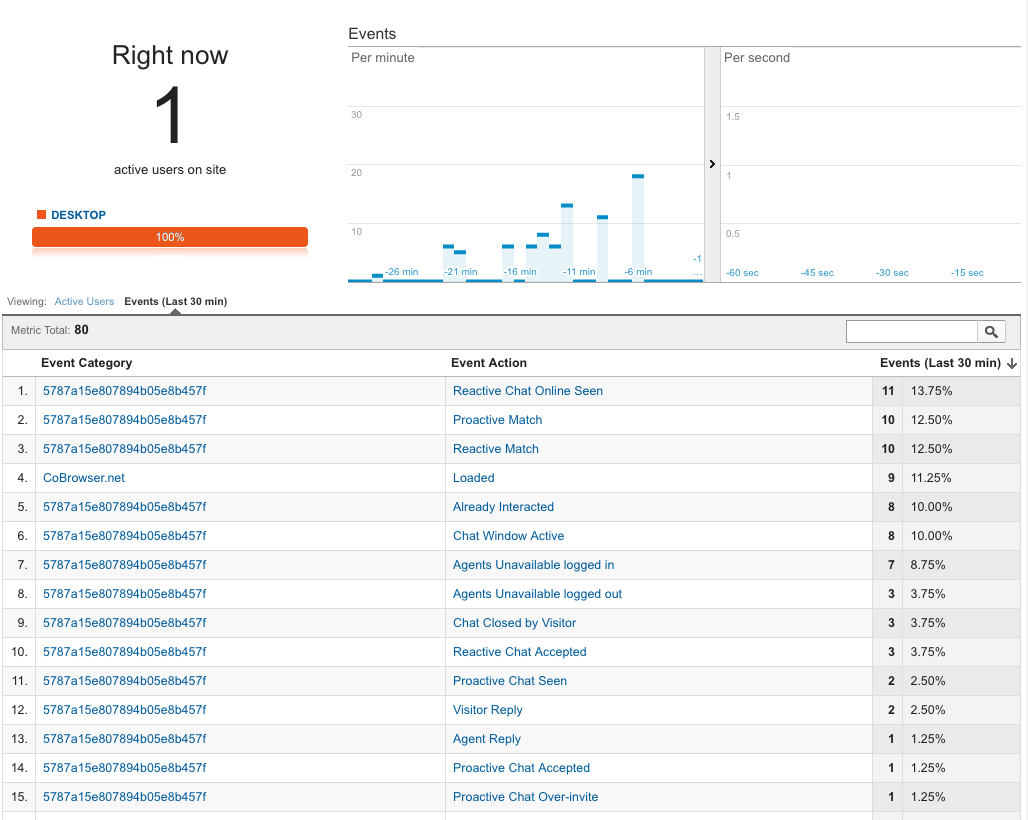
An example of how the events sent by the CoBrowser platform appear inside GUA.
Configuration
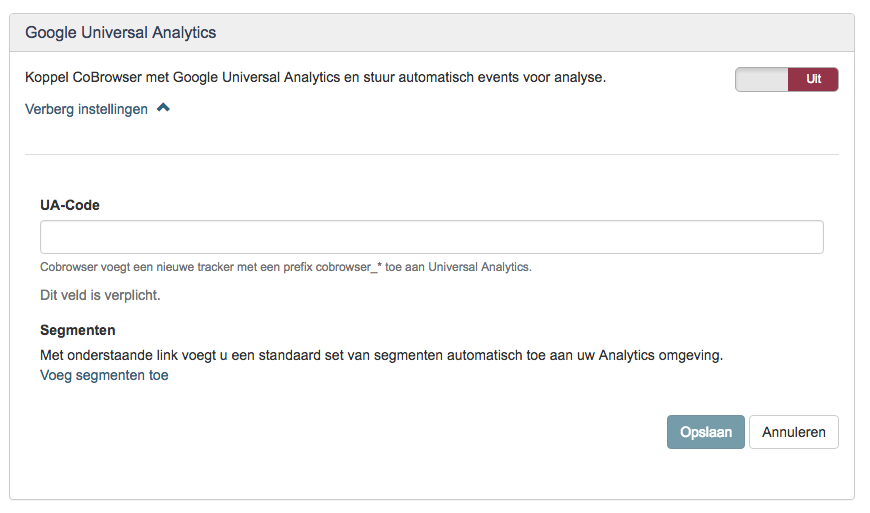
In the Campaign Manager in the section Goals, you are able to manage the connection between your Chat Campaign and your GUA account. The connection can be turned on and off and requires your UA-code. When you are already logged into GUA you can find your UA code here. After entering you UA code and clicked the save button, any new visitor targeted by this Campaign will trigger events being sent to GUA.
Classic Google Analytics
Cobrowser does not have support for the old google analytics tracker. If you are still using the old analytics tracker, you should update. More information can be found here. In case you were using Google Tag Manager, make sure the tag type is 'Universal Analytics' instead of 'Classic Google Analytics'.
Comments
0 comments
Please sign in to leave a comment.