
In this article we will give you a brief introduction to Content Security Policy and we'll explain you how to configure your website to get CoBrowser chat running properly.
Introduction
Content Security Policy (a.k.a. CSP) is an added layer of security that helps to detect and mitigate certain types of attacks, including Cross-Site Scripting (XSS) and data injection attacks.
If you want to enable this extra security layer in your website then you need to configure your web server to return the Content-Security-Policy HTTP header.
Configuring Content Security Policy involves adding the Content-Security-Policy HTTP header to a web page and giving it values to control what resources the user agent is allowed to load for that page.
For example, a page that uploads and displays images could allow images from anywhere, but restrict a form action to a specific endpoint.
Another example could be to only allow loading styles from a specific and trusted sources. If your website uses the popular CSS framework Bootstrap then you must allow loading the CSS style files from Bootstrap CDN.
<link href="https://cdn.jsdelivr.net/npm/bootstrap@5.1.1/dist/css/bootstrap.min.css" rel="stylesheet" integrity="sha384-F3w7mX95PdgyTmZZMECAngseQB83DfGTowi0iMjiWaeVhAn4FJkqJByhZMI3AhiU" crossorigin="anonymous">
You can read more information about CSP here.
Configuration
The CoBrowser chat requires several styles, images, fonts and javascript files to be loaded in your website in order to allow your visitors to start chatting with your agents.
All these external images, fonts, CSS files and JS files will be loaded from our domain https://app.cobrowser.com so you need to add that domain in your CSP policy.
Apart of those required files our software communicates with our domain app.cobrowser.com via HTTPS and Web Sockets in order to get the required information and display the chat accordingly to your configuration.
For allowing to load the JS files you need to specify this CSP policy:
Content-Security-Policy: script-src 'self' https://app.cobrowser.com;
For allowing to load the CSS files you need to specify this CSP policy:
Content-Security-Policy: style-src 'self' https://app.cobrowser.com;
For allowing to load the images you need to specify this CSP policy:
Content-Security-Policy: img-src 'self' https://app.cobrowser.com;
For allowing to load the fonts you need to specify this CSP policy:
Content-Security-Policy: font-src 'self' https://app.cobrowser.com;
For allowing to communicate with our domain you need to specify this CSP policy:
Content-Security-Policy: connect-src 'self' https://app.cobrowser.com wss://app.cobrowser.com;
In all examples shown here we have included self in the policy to allow as well your own domain. We strongly recommend you to configure your policy according to your needs and security requirements.
Video Chat configuration
If your account allows you to use Video Chat features and you would like to use that feature together with strong CSP rules then you need to apply these rules for frame-src.
Content-Security-Policy: frame-src https://video-direct.conversation24.com https://video-personal.conversation24.com;
CoBrowser initialization script
When you create a new Website in CoBrowser management application you will get a JavaScript code that you need to add into your website in order to start loading the CoBrowser chat.
The JavaScript code will look like the image below.
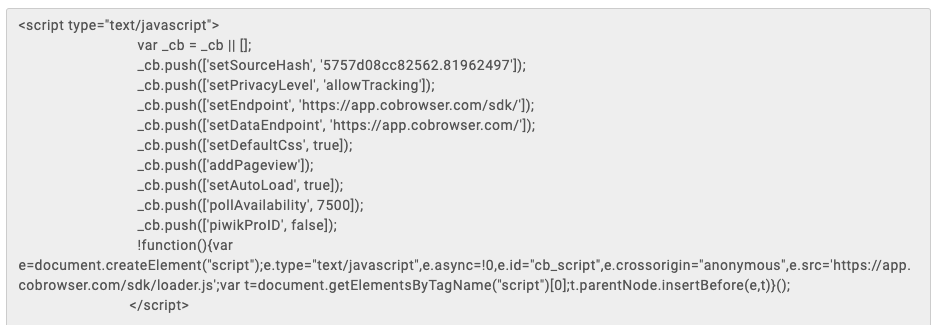
If you add that code directly in your website having this CSP in your website:
Content-Security-Policy: script-src 'self' https://app.cobrowser.com;
Then the CoBrowser initialization script will never be executed because the CSP only allows loading files from your own domain self or from https://app.cobrowser.com but it does not allow inline scripts.
To properly fix this situation, you need to grab the content provided to you in the CoBrowser management application and place it in an external JavaScript file and then load it from your web server.
For instance you can create a new file in your web server called cobrowser.js and add the content between <script> </script> tags into that file.
After that the CoBrowser script will be loaded and executed because it's loaded from your own website according to the CSP self in the script-src.
Agents avatars, Campaign logos and Custom CSS
In the CoBrowser management application you can create chat buttons, chat invites and custom chat buttons. All of them will allow your visitors to start chatting with your agents in different ways.
CoBrowser allows you to make some customizations to your chat buttons and chat invites like position and color.
All those colors and positions customizations work fine with the CSP headers mentioned in the Configuration section. You do not need to add any specific policies for them to work properly.
CoBrowser also allows you to use Chat Campaign logos and Agents avatars that will be shown in the CoBrowser chat.
Right now CoBrowser is loading those logos and avatars using data attributes. So in order to make them work properly you need to change your CSP to allow data:[<mediatype>][;base64],<data> images like in the example below:
Content-Security-Policy: img-src 'self' https://app.cobrowser.com data:;
NOTE: data: Allows data: URIs to be used as a content source. This is insecure; an attacker can also inject arbitrary data: URIs. Use this sparingly and definitely not for scripts.
CoBrowser development team is working on improving the CoBrowser chat to avoid completely the need of requiring data in your img-src CSP.
You can read more information about data attributes for your img-src Content Security Policy here.
CoBrowser also allows you to apply more sophisticated CSS customizations to anything you'd like about the chat window allowing you to load custom CSS snippets.
In order to allow those customizations to work properly in your website you need to slightly modify the Content Security Policy for style-src defined in the Configuration section.
If you want to allow the customizations mentioned here you need to use this kind of Content Security Policy:
Content-Security-Policy: style-src 'self' 'unsafe-inline' https://app.cobrowser.com;
If you want to be more strict there's another option to allow custom CSS without adding unsafe-inline to your style-src policy, by using '<hash-algorithm>-<base64-value>'.
For example:
Content-Security-Policy: style-src 'self' 'sha256-Af3qX0m4oTgOmMz059JS4emyhzm8A4VvN+6HRCF3GPU=' https://app.cobrowser.com;
As you can see in the example we're including a SHA-256 hash that identifies the custom CSS style element that CoBrowser system will inject as an inline style.
This way you have a more strict and secure CSP in place, the issue with this approach is that you need to regenerate the SHA-256 hash every time you make modifications to your custom CSS.
You can read more information about unsafe-inline and sha-256 hashes for your style-src CSP here.
Final considerations
By following the Content Security Policies specified in the Configuration section you will be able to use CoBrowser software in your domain without any problems and with a strong and secure enough CSP.
The only consideration from your side is to enable unsafe-inline or '<hash-algorithm>-<base64-value>' in your style-src policy if you want to use custom CSS.
If you go with the use of hashes you need to maintain those hashes whenever you make changes on your custom CSS.
Finally if you would like to display Campaign logos or Agents avatars in your chat you would need to enable data in your img-src policy.
Comments
0 comments
Please sign in to leave a comment.